

Inviting Members
There are four ways people end up in your EquipFlow organization: they follow your org's invite link, you add them to a cohort by email, you send a direct invitation, or they arrive automatically through a Planning Center sync. All four land them in the same place — your People list — with the same sign-in experience.
Invitation vs. enrollment
Two words that sound similar but mean different things:
- Invitation — an email we send to someone who doesn't have an EquipFlow account yet. Clicking the link in that email creates their account so they can sign in. Invitations are a one-time event that gets a person through the front door.
- Enrollment — the link between a person and a specific course. Once someone has an account, they get enrolled in a course either manually, through a cohort assignment, or automatically via a Planning Center workflow. A single learner can have many enrollments (one per course).
In short: invitation = "join our org", enrollment = "take this course". A person can be invited without being enrolled in anything yet, and an existing member can be enrolled in a new course without ever seeing an invitation email.
Adding people to a cohort by email
The fastest way to onboard a group is from the Cohorts page. Open a manual cohort and use Add people to paste a list of email addresses (or upload a CSV). Before you submit, you'll see a preview that tells you exactly what will happen:
- Already on your team — added to the cohort immediately, no email sent.
- Already invited — we'll add them to this cohort when they sign up, no duplicate email.
- New — we'll email them an invitation now and queue the cohort membership for when they accept.
You can submit up to 100 emails at once. Invalid email formats are flagged before the send, and duplicates inside a single paste are de-duped automatically.
Direct invitations from Settings
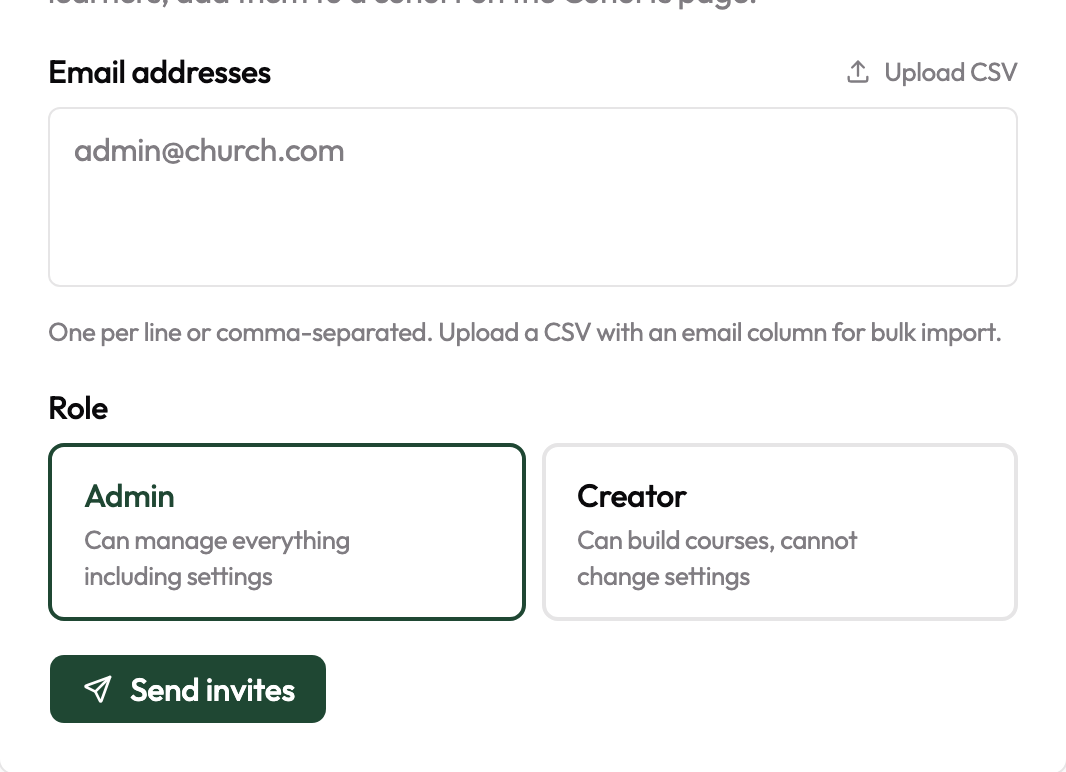
If you just want to grant someone admin or creator access — not put them in a specific cohort — go to Settings → Access. That page lets you invite teammates and pick their role. These invitations behave the same way: an email goes out, and when the person clicks the link we create their account and assign them the role you picked.
Invite link (self-serve)
Every EquipFlow organization has a unique invite URL you can share freely. You'll find it on the People page, in the Invite link card at the top. Anyone who visits the link can join your org as a Learner — the default role for new members.

This is the easiest way to onboard a group all at once when you don't have a clean list of emails yet. Drop the link in your church app, a Planning Center form confirmation, or a welcome email and people can join without any admin action on your part.
Magic-link email sign-in
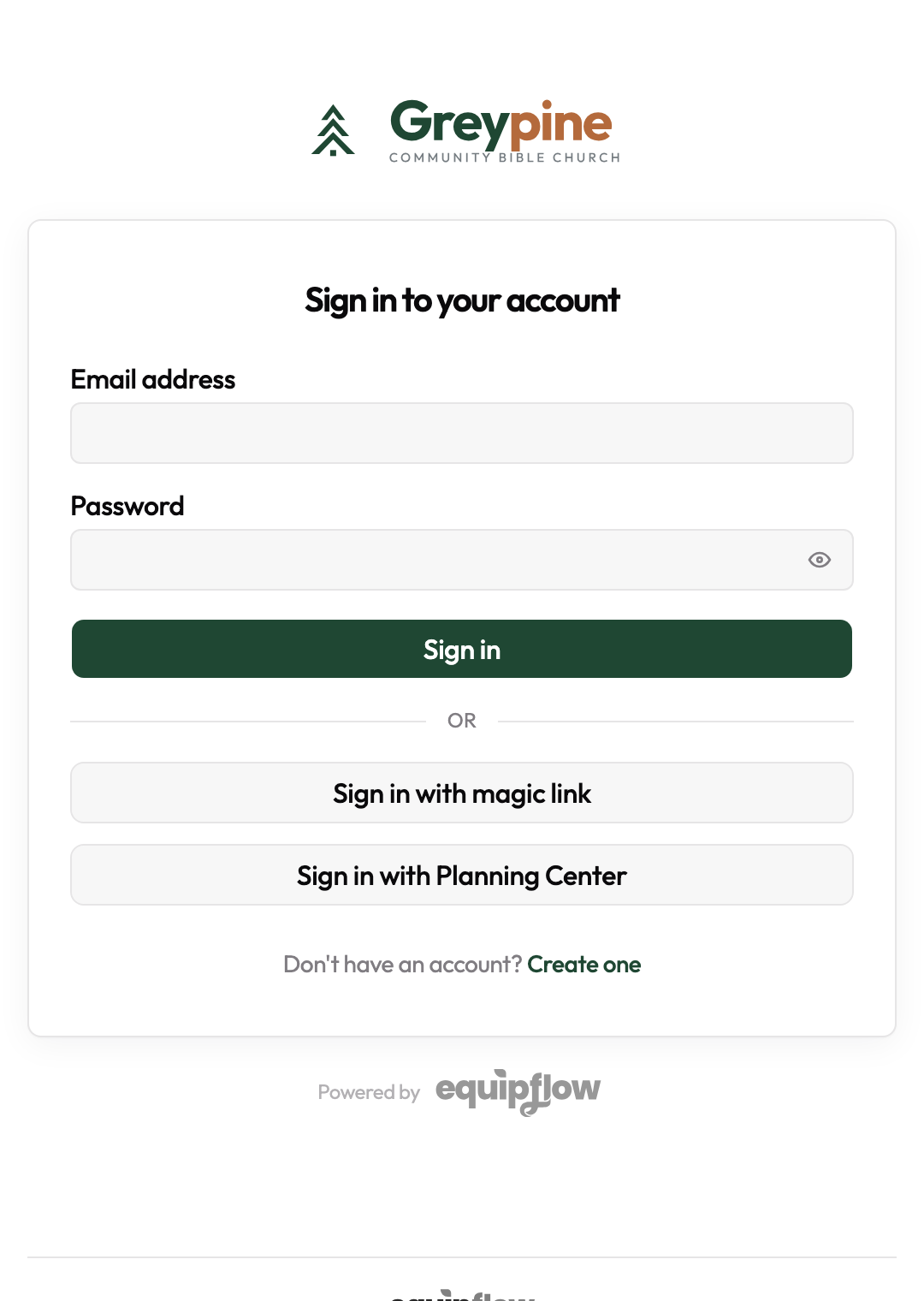
EquipFlow does not require passwords by default. When someone signs in — or accepts an invite — they enter their email address and receive a one-time sign-in link. Clicking it logs them in immediately.
If a member prefers a password, they can set one from their Account page after their first sign-in. Either way, the magic-link option always remains available as a fallback.
Planning Center sync
If your organization is connected to Planning Center, people can arrive automatically. When a Planning Center sync runs, EquipFlow checks your synced groups, teams, and lists and flags anyone who doesn't already have an EquipFlow account.
Whether those people immediately get an invitation email — or just sit in the Invites tab as "unsent" until you click Send all unsent — depends on a setting described below.
See the Planning Center Integration article for details on what gets synced and how often.
Why are my invites not sent?
The Invites tab on the People page lists everyone who should receive an invitation but whose email hasn't gone out yet. There are three common reasons an invite can be sitting in that "unsent" state:
- Auto-invite on enrollment is off — This is the most common reason for PC-synced people. In Planning Center → Settings there's a toggle labeled Auto-invite on enrollment. When it's on, we email newly-synced people right away. When it's off, we add them to the Invites tab and wait for you to hit Send all unsent. Turn it on if you want hands-off onboarding; leave it off if you want to review the list before anyone hears from us.
- The person has no email address in Planning Center. EquipFlow can only invite people we can email. Edit the person's record in PC to add an email, then re-run a sync.
- Email isn't configured for your org yet. If you're on a custom domain or still setting up sending, check Settings → Email Templates and Settings → Domain. Until sending is wired up, every invite lands in the Invites tab as unsent.
A previous invitation that bounced (bad email) or was marked as spam (complained) will also show up in the Invites tab with a red indicator — those usually mean the email address is wrong or the recipient reported the invite, and re-sending won't help. Fix or remove the address and try again.
Pending invites tab
Open the People page and switch to the Invites tab to see everyone who's been invited or queued but hasn't signed in yet. From there you can:
- Send all unsent — bulk-send any queued invitations in one click.
- Resend — issue a fresh invite link to a specific person if theirs expired or was missed.
- Remove invite — cancel an invitation that was sent in error.
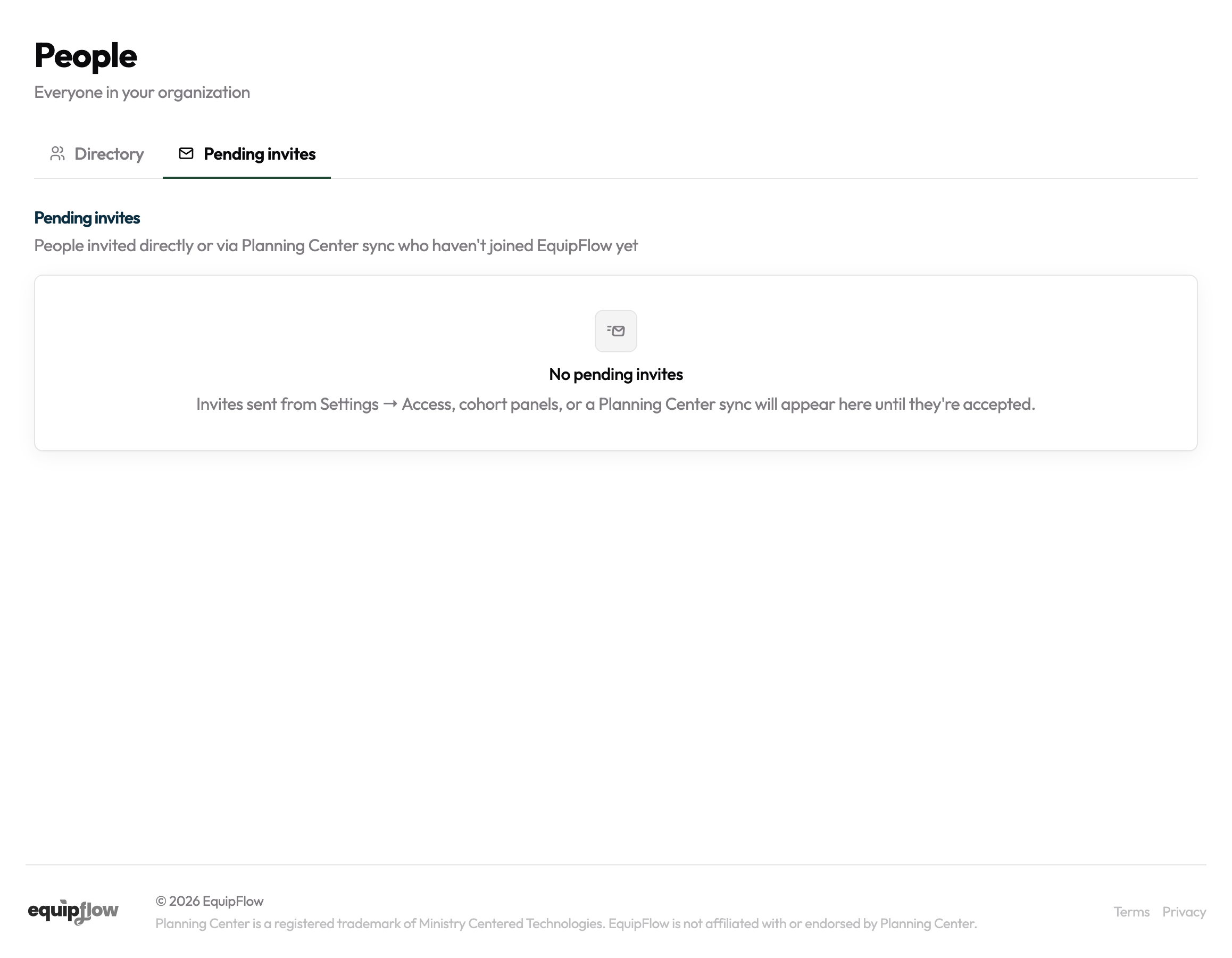
Invitation links expire after 7 days. Resending always issues a new one.
What members see when they first log in
After a new member signs in for the first time, they land on their My Learning dashboard. If they've already been enrolled in a course — through a cohort, a workflow, or a manual assignment — those courses appear right away. If nothing has been assigned yet, they see an empty state with a prompt to check back later.
Learners can only see their own progress. They cannot browse the full course catalog or view other members' activity unless you change their role to Creator or Admin.