

Assigning Courses
Assigning a course creates an enrollment for each learner you target. Once enrolled, the course appears on the learner's My Learning dashboard and they can begin working through it. Assignments can target a specific user, a role, a Planning Center source, or a manual cohort.
How to assign a course
Open the course from the Courses list and go to the Assignments tab. Click Assign and pick one of the four target types in the dialog: Specific user, Role, PC source, or Cohort.
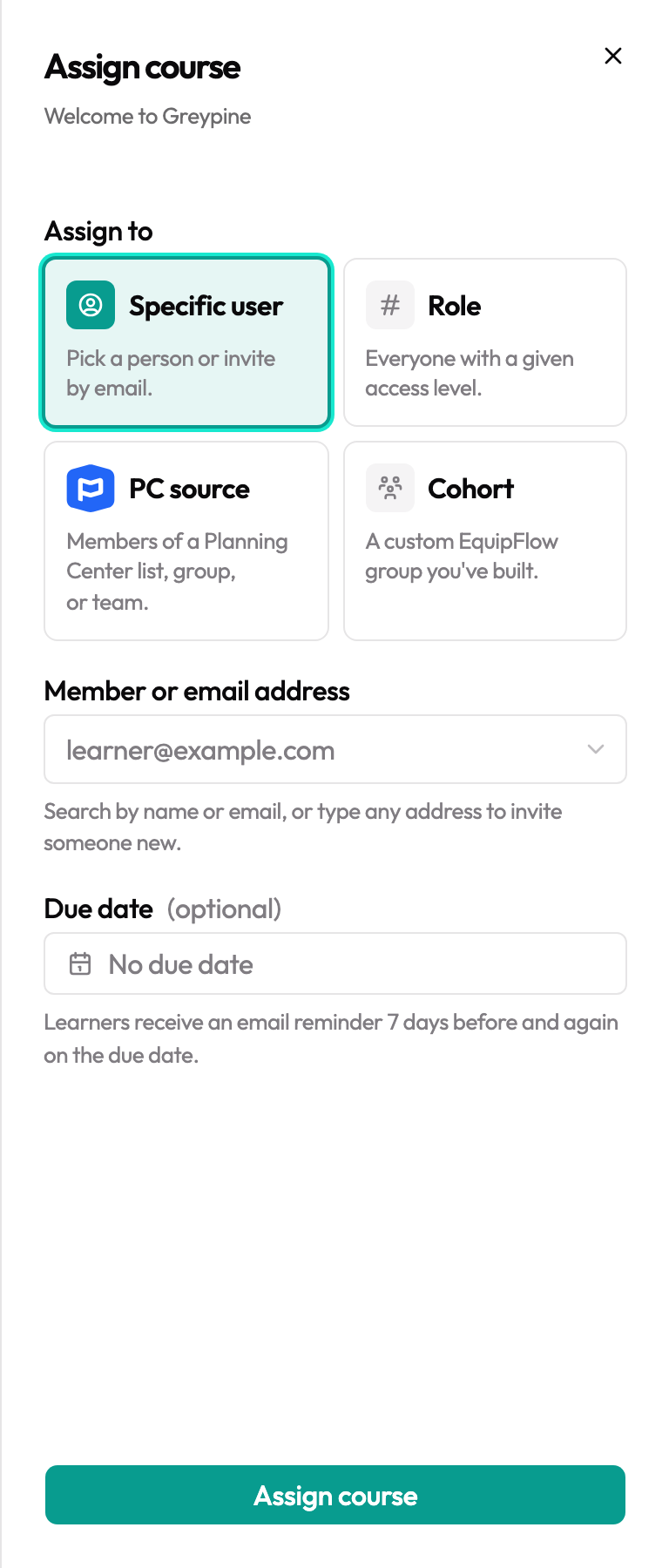
Specific user
Search for someone by name or email and pick them from the dropdown. The course is added to their dashboard immediately. If you type an email address that isn't on your team yet, EquipFlow will invite them and enroll them at the same time.
Use this for one-off training that doesn't fit a role or cohort — a new staff hire's orientation, a make-up for someone who missed a session, or a single advanced course for one leader.
Role
Choose Learner, Creator, or Admin. Every current member with that role is enrolled, and any future members who get the role are enrolled automatically. Role assignments are set-and-forget — useful for org-wide training that everyone at a level should complete (a church-wide policy course assigned to all Learners, for example).
PC source
A PC source is a Planning Center group, team, or list. Assigning a course to one enrolls everyone currently in the source and keeps enrolling new people as they're added in Planning Center. The picker shows every PC source available — you don't need to "track" a source ahead of time; picking it for the first time starts syncing it automatically.
When you select a PC source, you'll also pick what should happen when someone leaves that source in Planning Center:
- Keep them enrolled — they stay enrolled and finish the course at their own pace. Use this for general discipleship, onboarding, or any training where finishing matters more than current team membership.
- Unenroll them — they're removed from the course when they leave the source. Use this for role-coupled training: serve teams, role-specific certifications, or training a volunteer only needs while actively serving.
The default for that radio is set tenant-wide on the Planning Center page (Settings card → "Default cascade for new PC sources") and is pre-selected for every new PC source assignment. You can override it per assignment.
If a learner is in multiple PC sources that all enroll them in the same course, leaving just one of them won't unenroll them — only when no remaining source still justifies the enrollment does the unenroll cascade fire.
Cohort
A cohort is a manual group of members you maintain inside EquipFlow. Assigning a course to a cohort enrolls every member, and anyone you add to the cohort later is enrolled automatically. If a member is removed from the cohort, their existing enrollment is preserved.
Cohorts and PC sources are deliberately separate concepts: a cohort is for groupings that don't live in Planning Center (a specific class, a list of new hires, a seasonal training group); a PC source is for everything that does. See Cohorts for how to create and manage cohorts.
Due dates
When creating an assignment, you can optionally set a due date. Due dates appear on the learner's dashboard alongside the course. EquipFlow does not automatically lock or fail an enrollment when a due date passes — the due date is a target, not a hard cutoff.
You can edit or remove a due date from an existing assignment at any time from the Assignments tab.
Automatic reminders
When a due date is set, EquipFlow automatically sends email reminders to learners who haven't completed the course yet:
- 7 days before the due date
- On the due date itself
Learners who have already completed the course are skipped — they won't receive a reminder. Reminders are sent from your organization's configured email name and include a direct link back to the course.
If you remove or change a due date before a reminder would have gone out, no reminder is sent for the old date.
How enrollment works
Every assignment creates one enrollment record per learner. An enrollment tracks:
- Whether the learner has started the course
- Which lessons are complete
- The overall completion percentage
- The date the course was completed (if finished)
If a learner is assigned the same course through multiple paths — for example, they're in a cohort and also assigned individually — EquipFlow creates only one enrollment. Duplicate assignments are de-duplicated automatically, and the roster shows the source label using a priority order: direct user → role → group (cohort or PC source).
What the learner sees
On their My Learning dashboard, learners see a card for each enrolled course showing the course title, cover image, progress bar, and due date (if set). Clicking the card opens the course and drops them into the first incomplete lesson.
Learners do not see who assigned them or which source triggered the assignment — just the course itself and their own progress.