

Creating a Course
Courses are the core unit of training in EquipFlow. Each course contains one or more modules, which in turn contain lessons. You can build a course for anything — a volunteer orientation, a leadership development track, a membership class, or a simple policy acknowledgement.
Starting a new course
Go to Courses in the sidebar, then click New Course in the top right corner. A form will open where you'll fill in the course details before adding any content.

Course details
Title and description
Give your course a clear, specific title — something like "Volunteer Orientation: Children's Ministry" rather than just "Orientation." The description appears on the course card and at the top of the learner's course page, so use it to explain what the course covers and who it's for.
Cover image
Upload a cover image to make the course visually recognizable on the dashboard and in lists. Landscape images at 16:9 ratio work best. If you skip the cover image, EquipFlow will show a default placeholder.
Status
Every course moves through three statuses:
- Draft — Only admins and creators can see the course. Learners cannot access it even if it's been assigned to them. Use this while you're building content.
- Published — The course is live. Assigned learners can access and complete it.
- Archived — The course is no longer active. Existing enrollments are preserved for record-keeping, but the course cannot be assigned to new learners. Use this when a course is retired but you want to keep completion history.
Estimated time
Enter an estimated completion time so learners know what they're committing to before they start. This appears on the course card. It does not enforce any time limit — it's informational only.
Tags
Tags help you organize and filter your course library. You can add multiple tags to a single course (for example: "Volunteer," "Children's Ministry," "Onboarding"). Tags are free-form — type any label and press Enter to add it.
Enrollment type
Enrollment type controls how learners can access the course:
- Open — Any member of your org can self-enroll. The course appears in the public catalog.
- Invite only — Learners must be assigned to the course by an admin or creator. They cannot self-enroll.
After you create the course
Once the course is saved, you land on the course detail page. The page is split into a dark hero at the top (status, tags, title, description, and the four-stat block — Enrolled / Completed / In progress / Not started) and a sticky 5-tab body below it. The title, description, and tags on the hero are inline-editable — click any of them, type, and click away to save.
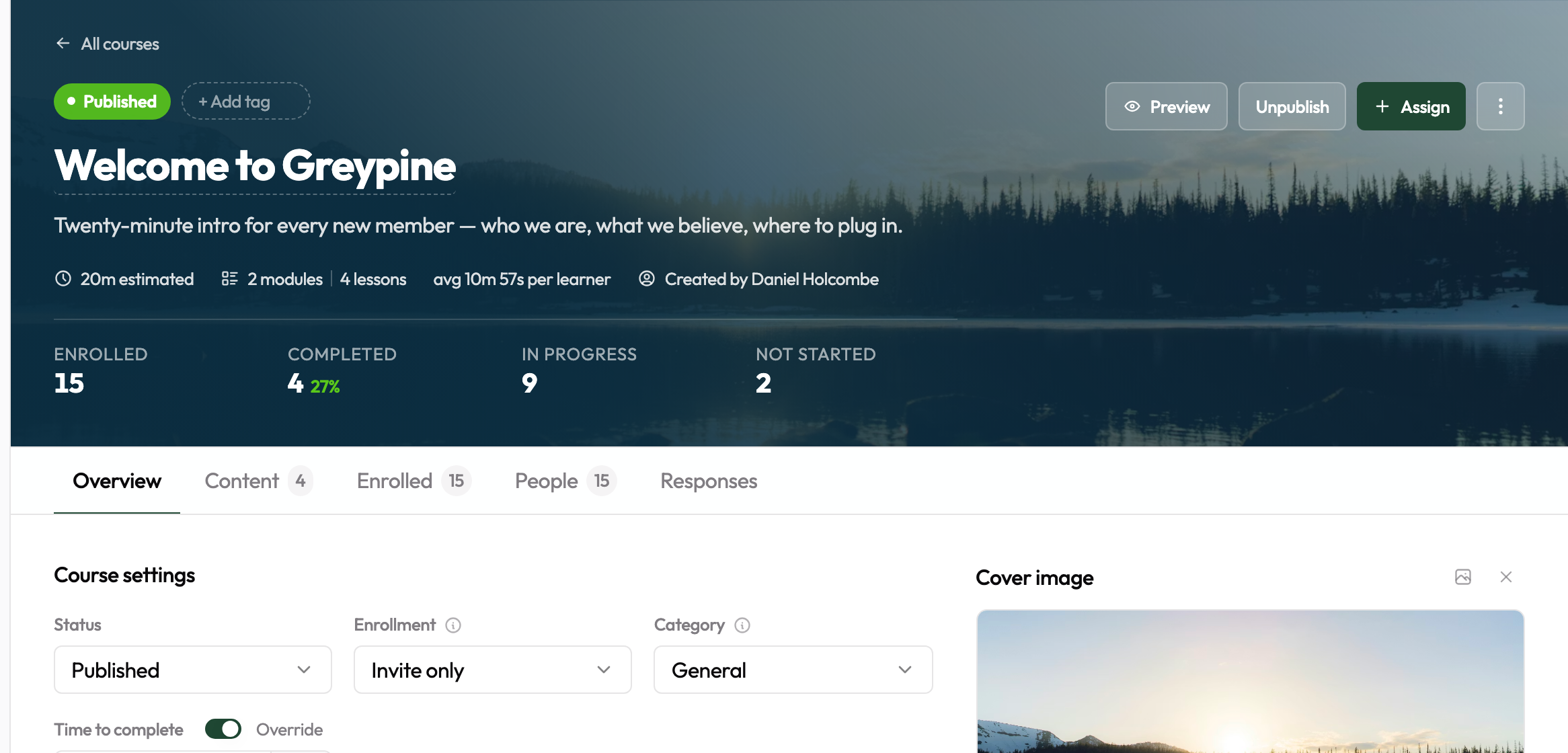
The five tabs are:
- Overview — All course-level settings.
- Content — Modules and lessons (the actual course material).
- Assignments — The list of who's been assigned the course (by user, role, PC source, or cohort), plus the Assign button to add more.
- Learners — Per-learner progress view for drilling into a single person.
- Responses — Submissions to lesson tasks. Only appears once at least one lesson has a task.
Settings on the Overview tab
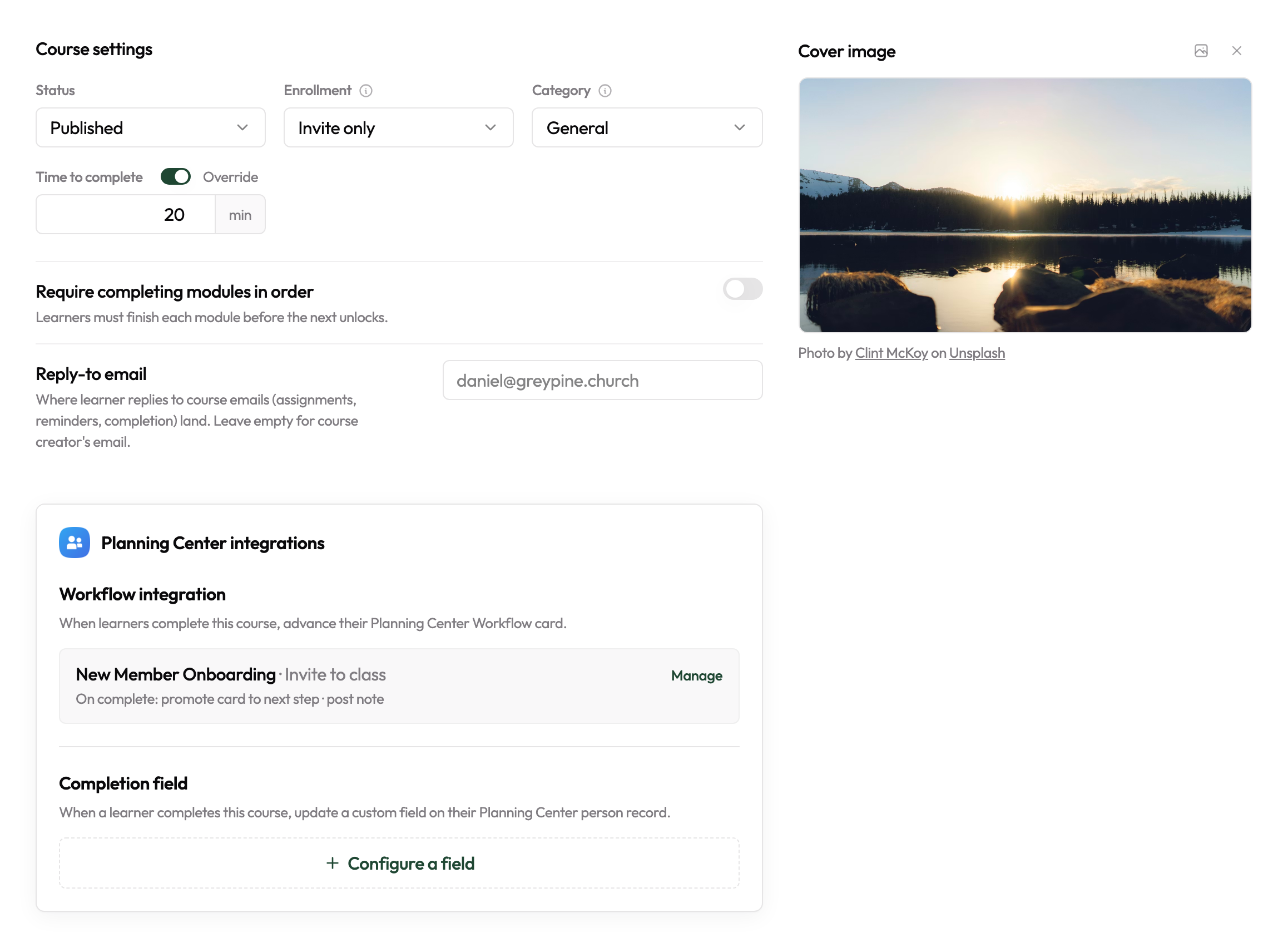
The Overview tab is where you tune the course-level settings after creation. Beyond the basics already covered above (status and enrollment type), it surfaces a few options not available in the create form:
- Time to complete — auto-calculated from video durations and reading time by default. Flip the Override switch to set the estimate manually instead (useful for courses with offline practice).
- Category — if your org uses categories, this controls which team owns and can edit the course.
- Require completing modules in order — when on, learners can't open a module until the previous one is fully complete.
- Reply-to email — the address learner replies to course emails (assignment notifications, due-date reminders, completion messages) land in. Defaults to the course creator's address; override to send replies to a shared inbox like
training@yourchurch.org.
The course remains in Draft until you manually publish it from the Overview tab's status select, so you can build out all the content before anyone sees it.
See Lessons & Modules for how to add content, and Assigning Courses for how to get the course in front of learners.