

Lessons & Modules
Content inside a course is organized into modules and lessons. Think of modules as chapters and lessons as the individual pages within each chapter. A short course might have a single module with three or four lessons. A longer leadership track might have five or six modules, each with its own set of lessons.
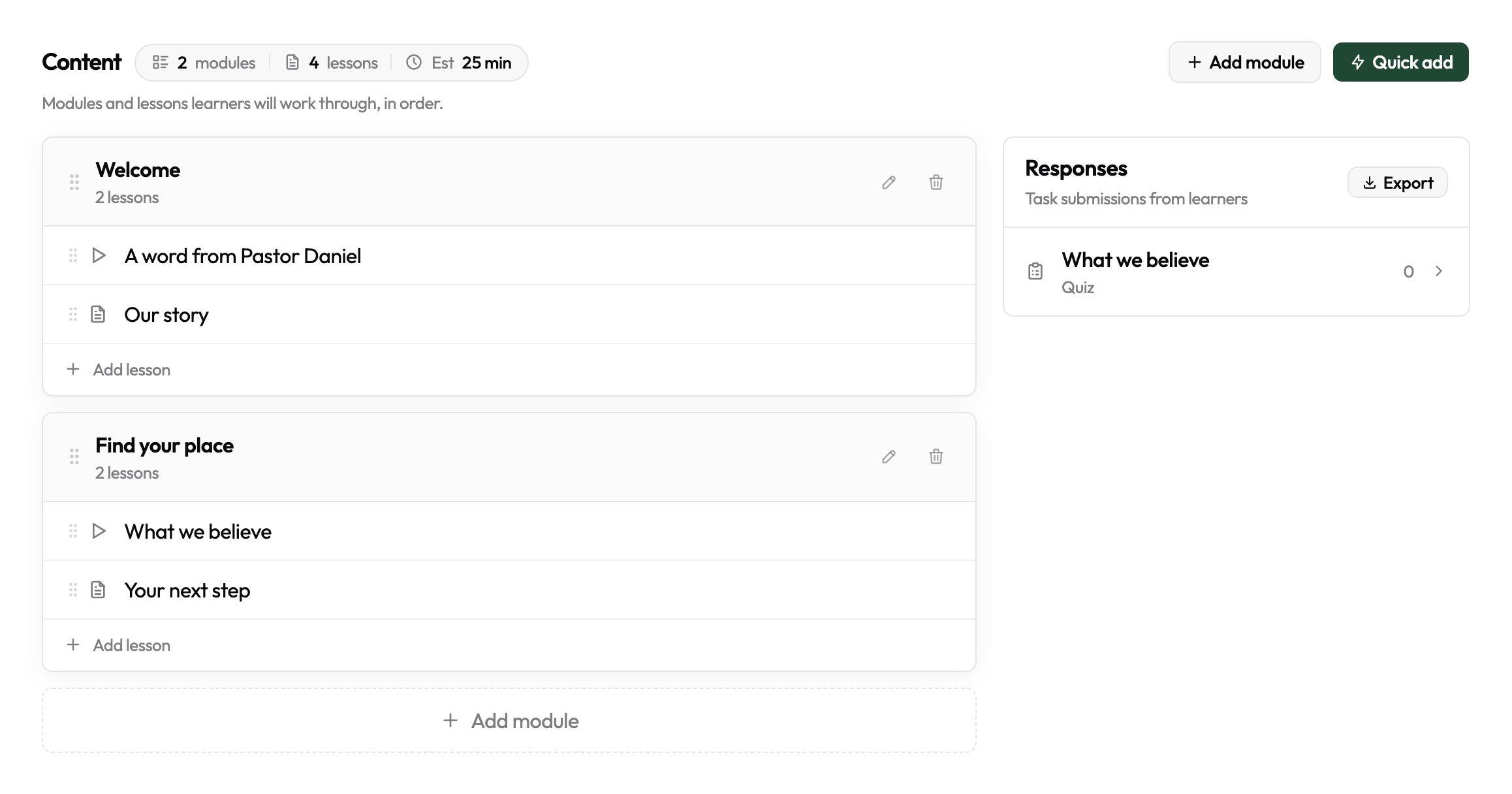
Modules
Modules group related lessons together and give learners a sense of progress through the course. Each module has a title and appears as a collapsible section in the learner's view.
To add a module, open the course editor and click Add Module. Give the module a descriptive title — something like "Week 1: Welcome & Values" or "Part 2: Hands-On Training." You can add as many modules as your course requires.
Reordering modules
Drag the handle on the left side of any module row to reorder it. Modules display to learners in the order you set here.
Lessons
Lessons live inside modules and contain the actual training content. Each lesson has a title, a rich text body, and an optional task that the learner must complete before marking the lesson done.
To add a lesson, click Add Lesson inside any module. You can add as many lessons to a module as you need.
The rich text editor
The lesson editor supports formatted text, headings, bullet lists, numbered lists, links, and embedded images. Use headings to break a long lesson into readable sections. Use lists for step-by-step instructions or key takeaways.
Paste content from Google Docs or Word and the editor will preserve most basic formatting automatically.
Reordering lessons
Like modules, lessons can be reordered by dragging their handle. Lessons display in order, and learners work through them top to bottom.
Lessons can also be dragged across modules using the same handle — drop a lesson into a different module's lesson list and it moves there, with both modules' counts updating automatically. Useful when a lesson grew into a different topic than the module it started in.
Video lessons
Choose Video as the lesson type, then paste a YouTube or Vimeo link into the URL field. EquipFlow flips the source dropdown to match the link, renders an embed preview directly in the editor, and detects the video's runtime so the course's auto-calculated time-to-complete stays accurate. A green Connected badge appears once the URL parses.
On the Multiply plan, you can also pick Hosted video and upload an MP4 directly to EquipFlow (up to 2 GB).
Lesson tasks
A task is an optional completion requirement attached to a lesson. The learner must complete the task before they can mark the lesson as done. There are three task types:
Acknowledgement
The simplest task type. The learner reads a statement and checks a box confirming they've read and understood it. Use this for policy confirmations, safety guidelines, or commitment statements — any time you want a record that someone agreed to something specific.
Text response
The learner types a free-form written response to a prompt you provide. Their response is saved and visible to admins and creators from the course reporting view. Use this for reflection questions, discussion prompts, or brief application exercises.
Quiz
A set of multiple-choice questions with a passing score threshold you define. The learner must score at or above the threshold to complete the lesson. You can allow retakes or restrict to a single attempt. Use quizzes when you need to verify knowledge retention — safety procedures, doctrinal training, or role-specific requirements.
Tips for structuring your content
- Keep lessons focused on one topic each. Shorter lessons with clear titles are easier for learners to navigate and return to.
- Use modules to create natural breaks — a new module signals a shift in topic or a good stopping point.
- Add at least one task per lesson if you need a completion record; otherwise learners can self-mark lessons done without engaging with the content.
- Save your work frequently — the editor auto-saves, but publishing a draft lesson locks it for learners immediately.